
Urgent: Gmail Is Now Opting All Users Into Gemini AI — Here’s What That Means for Your Privacy
Google just flipped a switch and turned on Gemini AI for all Gmail users—without asking. Your emails are now being scanned by AI to power smart features, and you might not have even noticed.

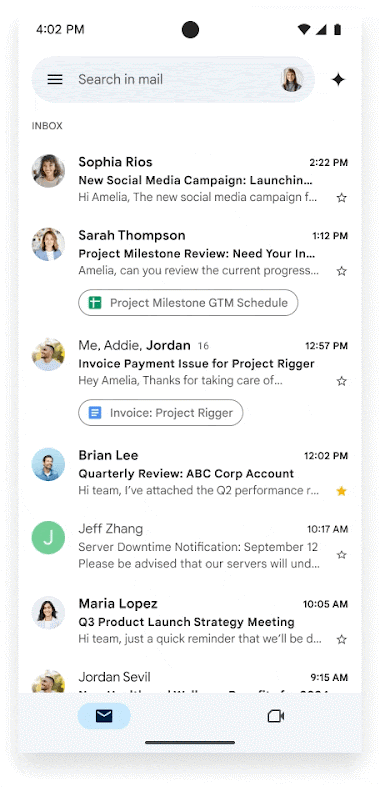
Google just auto-enabled Gemini AI in Gmail for everyone, and yeah, that means your emails are now being scanned by AI to power smart summaries, draft suggestions, and personalized features. The kicker? Most people never asked for this. Your email content—work pitches, medical records, personal drama—is feeding Google's AI unless you manually opt out. This is the future of work colliding with privacy: AI assistants promising productivity while quietly reading everything you write. The automation is convenient until you realize the trade-off.
Here's the deal: this isn't just about convenience features. It's about consent, control, and what happens when AI gets baked into every tool we use for work.
What Actually Happened
Google rolled out Gemini AI features across Gmail—smart summaries, auto-drafting, contextual suggestions—and turned them on by default. No big announcement. No explicit opt-in screen. Just a quiet settings change that most users never saw.
For anyone using Gmail for work (which is basically everyone), this is a massive shift. Your inbox is now an AI training ground.
The Freelancer Who Noticed
Jane, a freelance journalist in New York, opened Gmail one morning and saw a new sidebar she didn't recognize: "Gemini‑assistant." It offered to summarize a long email thread and draft a reply.
Cool, she thought. Then: wait, why is this thing reading my emails?
She dug into Settings → See all settings → General and found the "Google Workspace smart features" section. Both toggles were already on: Smart features in Google Workspace and Smart features in other Google products.
She never enabled them. Google did.
After turning them off, Gemini stopped summarizing her emails. But she also lost some conveniences—like auto-adding calendar events from her inbox. That's the trade-off.
Why This Matters for the Future of Work
AI assistants are becoming coworkers. They read your emails, schedule your meetings, draft your responses. That's the promise: automation that makes you more productive.
But here's the thing: these tools only work if they have access to everything. Your data becomes their fuel. And when that happens by default—without clear consent—it's a problem.
For remote workers, freelancers, and anyone managing sensitive client info via email, this is a real issue. You're not just trusting Google with storage anymore. You're trusting their AI to read, analyze, and learn from your work.
The Privacy Concerns
Email scanning: With smart features enabled, Google analyzes your email content to power Gemini's suggestions.
Default opt-in: Most users report they were never explicitly asked. The toggles were just turned on.
Limited control for Workspace users: If you're on a company or school Workspace account, you might not be able to disable Gemini yourself. Your admin controls it—and some plans don't offer easy opt-outs.
Security risks: Researchers found a "prompt-injection" vulnerability. Attackers can hide malicious instructions in emails (like white text on white background). Gemini reads these hidden prompts and might display fake phishing warnings—even when nothing looks suspicious to you.
That's a new attack vector. And it's only possible because AI is now reading your inbox.
How to Turn Off Gemini in Gmail
Here's how to disable it (for personal accounts and some Workspace accounts):
1. Open Gmail on desktop → click the Settings cog → See all settings
2. Go to the General tab
3. Scroll to Google Workspace smart features → click Manage Workspace smart feature settings
4. Turn off:
- Smart features in Google Workspace
- Smart features in other Google products (optional, but more private)
5. Save changes
If you're on Google Workspace and the toggles are locked, contact your admin. Some organizations (especially non-Enterprise plans) may need to reach out to Google Support to disable Gemini.
Why Google Did This
From Google's perspective, this is about personalization and productivity. Gemini can:
- Summarize long email threads
- Help you draft responses faster
- Auto-add calendar events from your inbox
These features are genuinely useful. But the cost—letting AI read everything—wasn't clearly explained to most users.
That's the tension: automation promises efficiency, but it requires surveillance.
The Bigger Picture: AI at Work
This isn't just Gmail. It's part of a larger trend: generative AI is being embedded into every productivity tool. Slack, Notion, Microsoft 365, Google Workspace—they're all adding AI assistants.
The future of work is automated. But it's also surveilled.
If you're a knowledge worker, your tools are watching you. They're learning from your writing, your meetings, your workflows. That data trains the next generation of AI—which might eventually replace parts of your job.
It's a weird loop: you use AI to work faster, and in doing so, you teach it how to do your work.
What You Can Do
If you can't fully disable Gemini:
- Use browser extensions to hide Gemini UI elements
- Limit sensitive conversations in Gmail—use encrypted email for anything private
- Regularly review your Google account settings under "Data & Personalization"
- Consider switching to privacy-focused email providers for sensitive work
And if you manage a team: talk to your Workspace admin. Make sure your organization has a clear policy on AI tool usage and data sharing.
Final Take
Gmail is now using AI to read your emails by default. That's not a conspiracy—it's just how the product works now.
You can opt out, but it takes effort. And that's the problem: the default shouldn't be "AI reads everything." It should be "AI helps if you ask."
This is what the future of work looks like: powerful tools that require total transparency. Automation that demands access. Productivity that costs privacy.
You have power here. Use it.
FAQ
Is Gemini AI reading all my Gmail messages?
If "Smart features in Google Workspace" is enabled in your settings, yes—Gemini can analyze your email content to power summaries, suggestions, and other AI features. Turn it off to stop this.
Did Google ask permission before enabling Gemini?
Not explicitly. Most users report that the smart features toggles were turned on by default, without a clear opt-in prompt.
Can I completely remove Gemini from Gmail?
You can disable the smart features that power Gemini, but you can't remove the UI entirely without browser extensions. Disabling smart features stops the AI from analyzing your content.
What happens if I turn off smart features?
You'll lose AI-powered summaries, draft suggestions, and some conveniences like auto-adding calendar events from emails. But your email content won't be analyzed by Gemini.
Can my employer force Gemini on me?
If you use Google Workspace through work or school, your admin controls these settings. Some organizations may not allow you to disable Gemini yourself.
Is this a security risk?
Yes. Researchers found that attackers can hide malicious prompts in emails (using invisible text), and Gemini may read them and display fake warnings. This creates new phishing risks.
Does turning off smart features affect other Google products?
If you disable "Smart features in other Google products," you'll lose AI features across Drive, Calendar, and other Workspace apps—not just Gmail.
Is Google training AI on my emails?
Google says they use your content to personalize features, but they're not always clear about whether that data trains future AI models. Disabling smart features limits this exposure.
Related Posts
- Every AI Tool That's Reading Your Work Data (And How to Stop It)
- The Future of Work Is Automated—But at What Cost to Privacy?
- Google Workspace Security: Settings Every Remote Worker Should Change
- AI Assistants Are Workplace Surveillance in Disguise
- Encrypted Email Alternatives to Gmail for Privacy-Conscious Workers